Layer 1–3 troubleshooting tools
The built-in tools on ReadyLinks switches for finding faults layer by layer, from port loopback, cable diagnostics, SFP DDM and G.hn line quality up to loop detection, port mirroring, ping and traceroute.
Work from the bottom up. Prove the physical link first, then the switching, then IP.
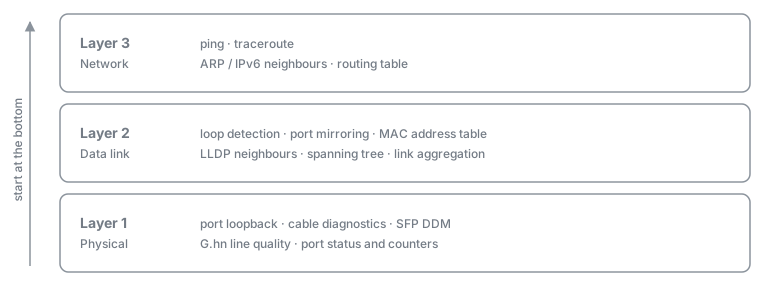
Every command below runs from the switch CLI (console, SSH or Telnet). The examples use port 0/3; use your own port name, for example 0/12, Fiber/G1 or RJ45/G1. Web UI paths are given where the switch's built-in web interface has the same tool.
#Layer 1 – Physical
#Port loopback
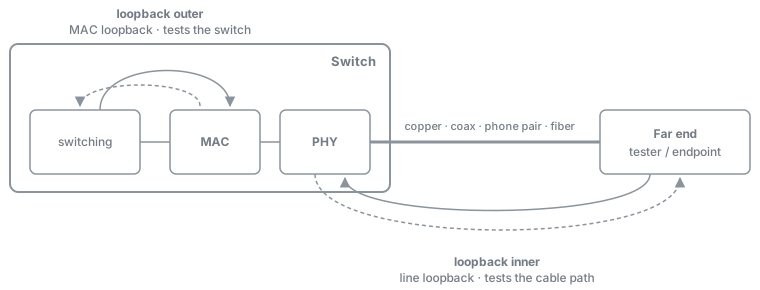
A loopback turns traffic around inside the port. There are two modes:
| Keyword | Loops at | Traffic that comes back | Use it to |
|---|---|---|---|
outer | MAC (inside the switch) | Frames the switch sends out of the port | Rule the switch port in or out. The line is not used. |
inner | PHY, facing the line | Frames that arrive from the line | Test the cable, coax or phone-pair path with a tester at the far end. |
disable | – | – | Return the port to normal. |
switch# configure terminal
switch(config)# interface ethernet 0/3
switch(Ethernet0/3)# loopback inner
Note: The port's loopback mode is set to inner, which may affect the normal use of the entire network.
The configuration will not be saved.
Are you sure you want to modify the port's loopback mode? (y/n): y
Configuration has been completed successfully!
switch(Ethernet0/3)# loopback disable#Cable diagnostics
Select copper models
Tests a copper Ethernet cable from the switch. For each pair (A–D) it shows OK or Open and a length in metres, with the measurement tolerance (± m). Pairs of very different lengths, or an Open, point at a bad termination or a break.
Web UI: Monitoring → Port Cable Diag. Pick the port and run the test. The menu item only appears on models that support it.
#SFP optics (DDM)
Digital diagnostics from the SFP module: temperature, TX power and RX power, each shown with its normal range. Low RX power points at dirty connectors, a bad patch or too much fibre loss.
switch# show ddmWeb UI: Monitoring → Port SFP Information.
#G.hn line quality
G.hn coax and phone-pair ports
For each G.hn link, show ghn interface lists the link state, local and remote MAC, the physical downstream/upstream rate (Mbps), the estimated wire length (m) and the estimated throughput.
switch# show ghn interfaceWeb UI:
- Monitoring → Ghn snr. Pick the port and the endpoint, then upstream or downstream, to plot the signal-to-noise ratio across the band. Dips show noise, splitters or bad fittings.
- Monitoring → Monitoring Rate. Per-port RX/TX rate, with an alarm threshold.
#Port status and counters
switch# show interface status
switch# show interface ethernet 0/3
switch# show interface counters ethernet 0/3
switch# show rmon statistics ethernet 0/3
Check speed, duplex and link state first, then look for rising error counters. To start counting from zero:
switch(config)# clear countersWeb UI: Monitoring → Port Statistics, and RMON → Statistics.
#Layer 2 – Data link
#Loop detection
The switch sends a probe frame and watches for it to come back. When it sees its own probe:
- an access port is shut down;
- a trunk port is shut down only if
loop-detection controlis on; otherwise the loop is logged.
switch(config)# loop-detection
switch(config)# loop-detection interval-time 10
switch(config)# interface ethernet 0/3
switch(Ethernet0/3)# loop-detection
switch(Ethernet0/3)# loop-detection control
switch(Ethernet0/3)# end
switch# show loop-detection
show loop-detection lists each port as Normal or Looped. After you remove the loop, bring the port back with no shutdown on the interface.
G.hn endpoints run their own loop detection on their Ethernet ports (G1–G4). Turn it on per endpoint MAC address:
switch(config)# ghn loop-detection 0200.0000.0001 enable
switch(config)# ghn loop-detection 0200.0000.0001 port G1 shutdown
switch(config)# end
switch# show ghn loop-detection 0200.0000.0001
More background: Spanning tree and Layer 2 security.
#Port mirroring
Copy a port's traffic to a capture port with a laptop running a packet capture.
switch(config)# mirror group 1
switch(MIRROR-1)# monitor-port ethernet 0/24
switch(MIRROR-1)# mirroring-port ethernet 0/3 both
switch(MIRROR-1)# end
switch# show mirror
Use ingress, egress or both. Remove it afterwards with no mirror-group inside mirror group 1.
Web UI: Monitoring → Port Mirroring.
#MAC table, neighbours, spanning tree, LAGs
| Question | Command | Web UI |
|---|---|---|
| Which MACs are learned, and on which port? | show mac-address-table, show mac-address interface ethernet 0/3 | – |
| What is plugged in at the other end? | show lldp neighbor_information | LLDP → Neighbor |
| Is a port blocked by spanning tree? | show spanning-tree | Spanning Tree → STP&RSTP → Ports Status |
| Is every link-aggregation member up? | show link-aggregation summary, show lacp neighbor | Configuration → Aggregation |
#Layer 3 – Network
#Ping
switch# ping 192.0.2.1
switch# ping 192.0.2.1 count 20 length 1472
switch# ping 2001:db8::1
The default is 4 packets. count (up to 100) and length (payload bytes) are given together. A large length that fails while small pings pass points at an MTU problem on the path.
Web UI: Administration → Ping Diagnosis.
#Traceroute
switch# traceroute 192.0.2.1Shows each router hop to a host name or IP address. The last hop that answers is where to look next.
Web UI: Administration → Traceroute Diagnosis.
#ARP and routes
switch# show arp
switch# show ipv6 neighbour
switch# show ip routing-table
switch# show ipv6 routing-table
No ARP entry for the gateway means a Layer 2 or VLAN problem, not an IP one.
#Testing throughput
The switch has no built-in traffic generator, so throughput tests need an external Ethernet test set. Put the switch port in line loopback and let the tester measure the path from the far end.

- Connect the tester at the far end of the cable, coax or phone pair.
- On the switch port:
loopback inner. - Run the tester in loopback mode (for example RFC 2544) and read rate and frame loss.
- On the switch port:
loopback disable.
For an end-to-end check without a loopback, run iperf3 between two hosts, one at each end of the path.
#Where to start
| Symptom | First tool |
|---|---|
| No link light | show interface status, then cable diagnostics |
| Link up but errors or drops | show interface counters ethernet 0/3 |
| Fibre link down or flapping | show ddm: check RX power |
| G.hn endpoint slow | show ghn interface: check PHY rate and wire length, then Ghn snr |
| Whole site slow, LEDs flashing together | show loop-detection, show spanning-tree |
| Port keeps shutting down | show loop-detection: look for Looped |
| Device not reachable but link is up | show mac-address interface ethernet 0/3, then ping |
| Gateway or internet unreachable | show arp, show ip routing-table, traceroute |
| Speed lower than expected | Throughput test with loopback inner |
#Related
- Troubleshooting basics: the general method.
- CLI quick reference: commands grouped by mode.
- GLx installation and GLxH installation.
Last updated October 21, 2026