Firmware and maintenance
Check which switches need firmware, upgrade or roll back one switch or many, schedule upgrades, set automatic upgrades for a site, and download firmware files.
ReadyView upgrades switch firmware for you: it sends the update, watches the switch install it and reboot, and shows the result. You can upgrade one switch, many at once, on a schedule, or automatically during a weekly window. For guidance on when and how to roll out firmware, see Firmware best practices.
#Where firmware is managed
| Task | Where |
|---|---|
| See how many devices are up to date | Administration > Summary, Firmware Status card |
| Upgrade or roll back one switch | The switch's Firmware Version row, on its Overview or Settings tab |
| Upgrade several switches | The site's Switches list, with the selection bar |
| Upgrade a site automatically | The site's Settings > General, Firmware card |
| See scheduled upgrades | The site's Operations > Schedule page |
| Download firmware files and read release notes | Administration > Firmware |
#Check firmware status
Open Administration > Summary. The Firmware Status card counts devices that are Up to Date, have an Upgrade Available, have Version Not Reported, or are Not Compared. Devices that are not compared run a separate firmware line, and the card lists those models. The card also shows the recommended Stable and Beta builds.
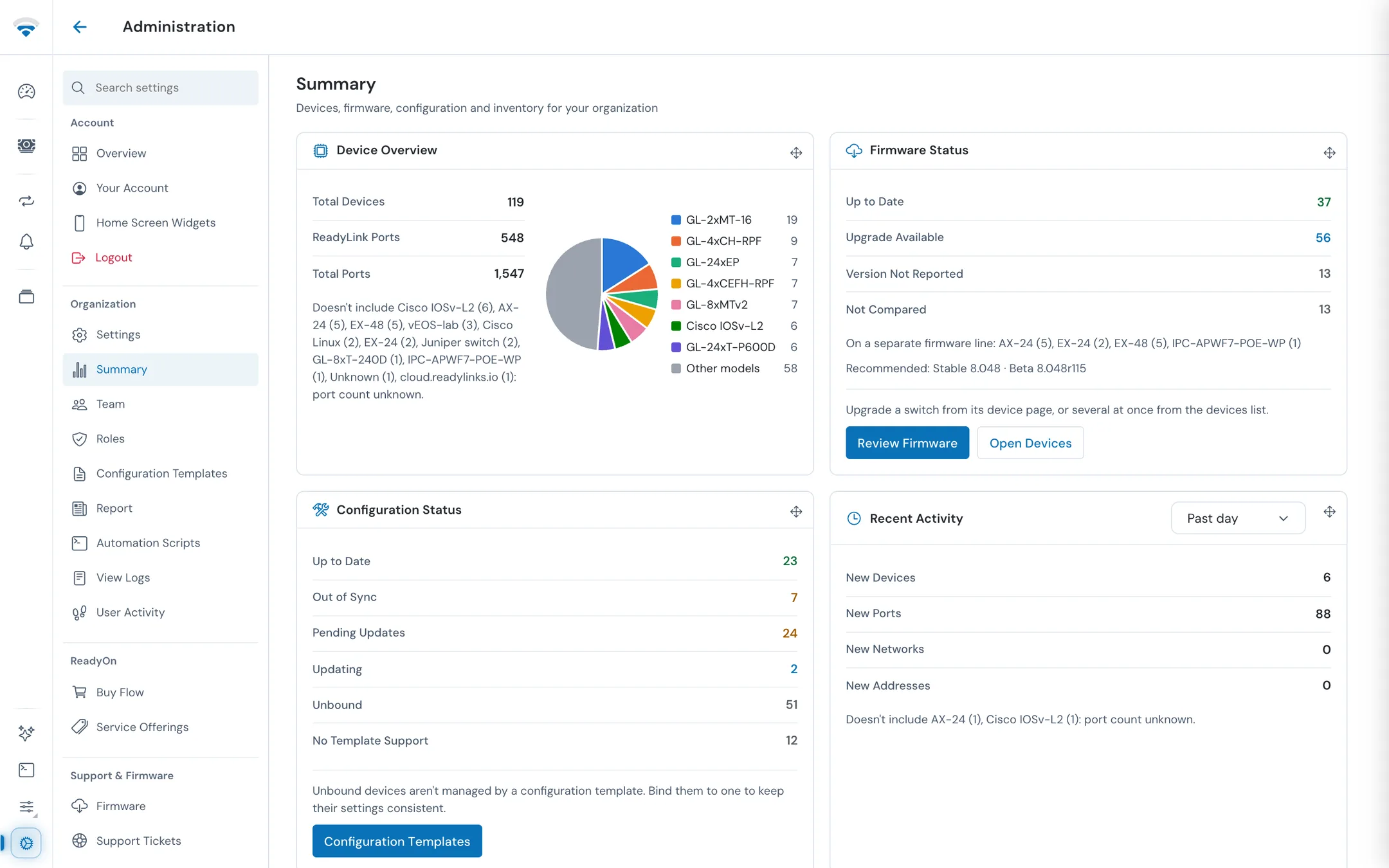
Click Review Firmware to open the firmware release list, or Open Devices to go to your devices.
#Upgrade a switch
When a newer build is available, an Upgrade link appears next to the switch's Firmware Version. Your role needs permission to upgrade switches.
- Click Upgrade.
- Read the Disclaimer: an upgrade takes about eight minutes, power must stay stable, and the switch reboots at the end, which interrupts service. Click Continue.
- In the Firmware Upgrade dialog, check the settings below, then click Apply.
| Setting | What it does |
|---|---|
| Upgrading to | The build that will be installed |
| Firmware channel | Stable or Beta. Until you change it, each switch follows its own site's channel |
| Firmware version | Recommended build, or a specific version to install instead. A build older than the recommended one is marked |
| Upgrade method | How the update reaches the switch. See below |
| Description | An optional label for the upgrade. It defaults to the switch's name |
| Start Time | Immediate, or a date and time to schedule the upgrade |
| Interval | Never, Hourly, Daily, Weekly, Monthly, or Custom (a number of minutes), to repeat the action |
| End Date | Turn on to stop a repeating action after a date |
#Upgrade method
| Method | When it's used |
|---|---|
| OTA | The switch runs RLOS 8.048 or newer, so it downloads the update itself at its next check-in. If its check-in is off, ReadyView turns it on first |
| Push | The switch's firmware is older than RLOS 8.048, so ReadyView uploads the update to it directly |
To upload the update even to a switch that could use OTA, open Advanced and turn on Force push (skip OTA).
#Follow the upgrade
Progress appears next to the switch's firmware version: Preparing upgrade..., Installing firmware..., Rebooting..., and finally Upgrade complete. Keep power and the network connected until it finishes. The switch is briefly unreachable while it reboots; that's normal.
| Message | What it means |
|---|---|
| Waiting for the switch to check in | An OTA upgrade is waiting for the switch to collect the update, usually within a minute. The switch stays online until then |
| Taking longer than expected | The switch hasn't reported progress for a while. Check its power and uplink before retrying |
| Upgrade timed out | The switch never checked in to collect the update, so it's still on its previous firmware. Click Retry to push the update instead |
| Upgrade failed | The switch kept its previous firmware. It's safe to retry |
#Upgrade several switches
- Open the site's Switches list and select the switches.
- In the selection bar, click Actions, then Upgrade.
- Read the disclaimer and click Continue.
- Choose the channel and version, and optionally a schedule, then click Apply.
The Upgrade method line tells you how many of the selected switches will upgrade over OTA; the rest are pushed.
#Roll back a switch
Roll back next to the switch's Firmware Version reinstalls an earlier build.
- Click Roll back, read the Roll back firmware notice, and click Continue.
- In Firmware Rollback, choose the build to roll back to. If no earlier build is available, the dialog says so.
- Click Roll back.
A rollback installs firmware and reboots the switch just like an upgrade.
#Upgrade a site automatically
In the site, open Settings > General. In the Firmware card:
- Turn on Auto upgrade.
- Choose the Upgrade channel: Stable or Beta.
- Choose the Upgrade day, and the hours for Window start and Window end.
- Click Save changes.
Firmware is then installed during that window. The channel, day, and window can be changed only while Auto upgrade is on.
#See scheduled actions
The site's Schedule page, under Operations in the left rail, lists the scheduled actions for the site, such as firmware upgrades.
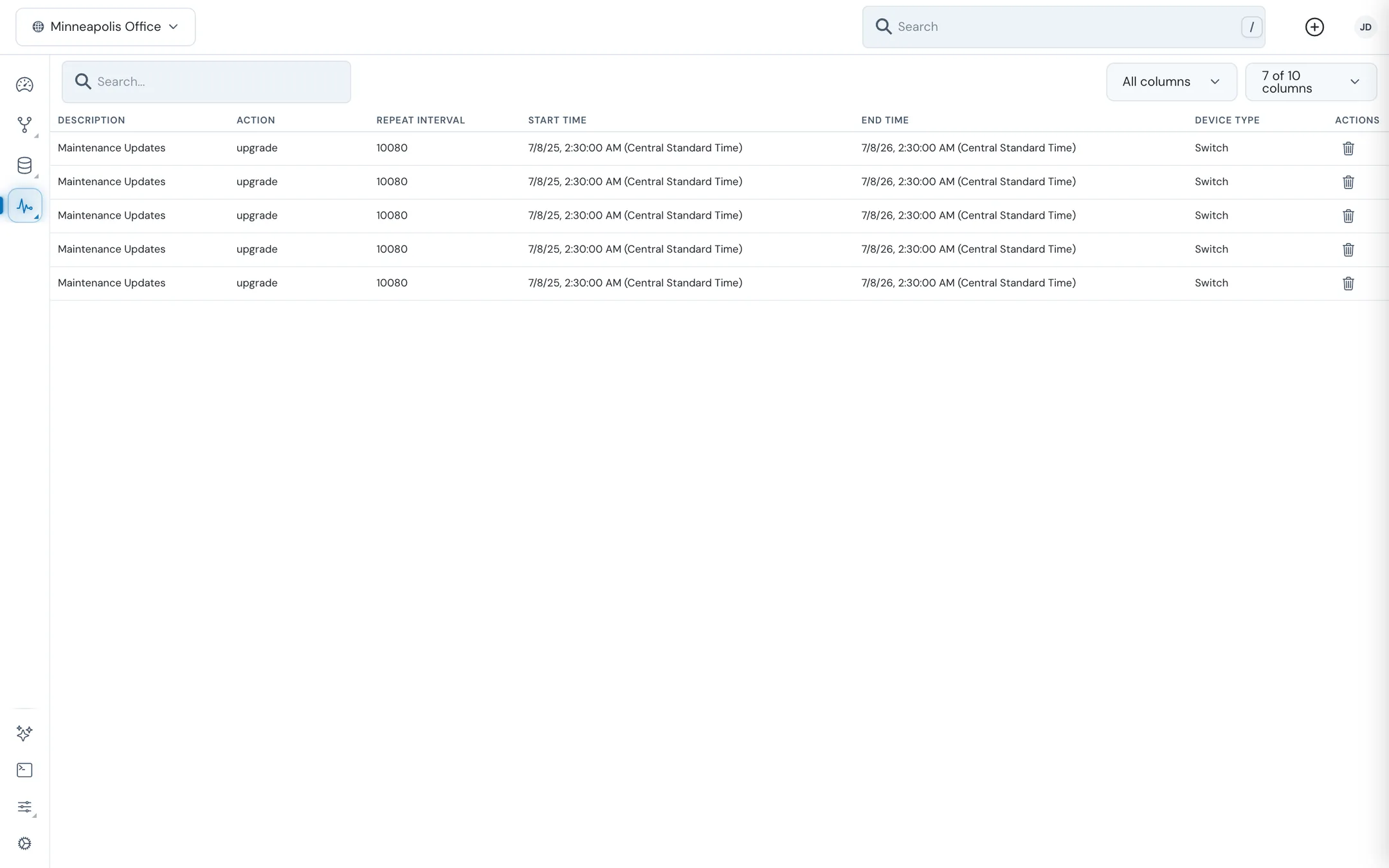
| Column | What it shows |
|---|---|
| Description | The label given to the action |
| Action | What runs, for example upgrade |
| Repeat Interval | How often it repeats. A number is in minutes; for example, 10080 is one week |
| Start Time | When it first runs |
| End Time | When it stops repeating |
| Device Type | The kind of device it runs on |
Click a row to open its device. If your role may delete scheduled actions, each row has a delete button in the Actions column.
#Download firmware files
Administration > Firmware lists published firmware with release notes.
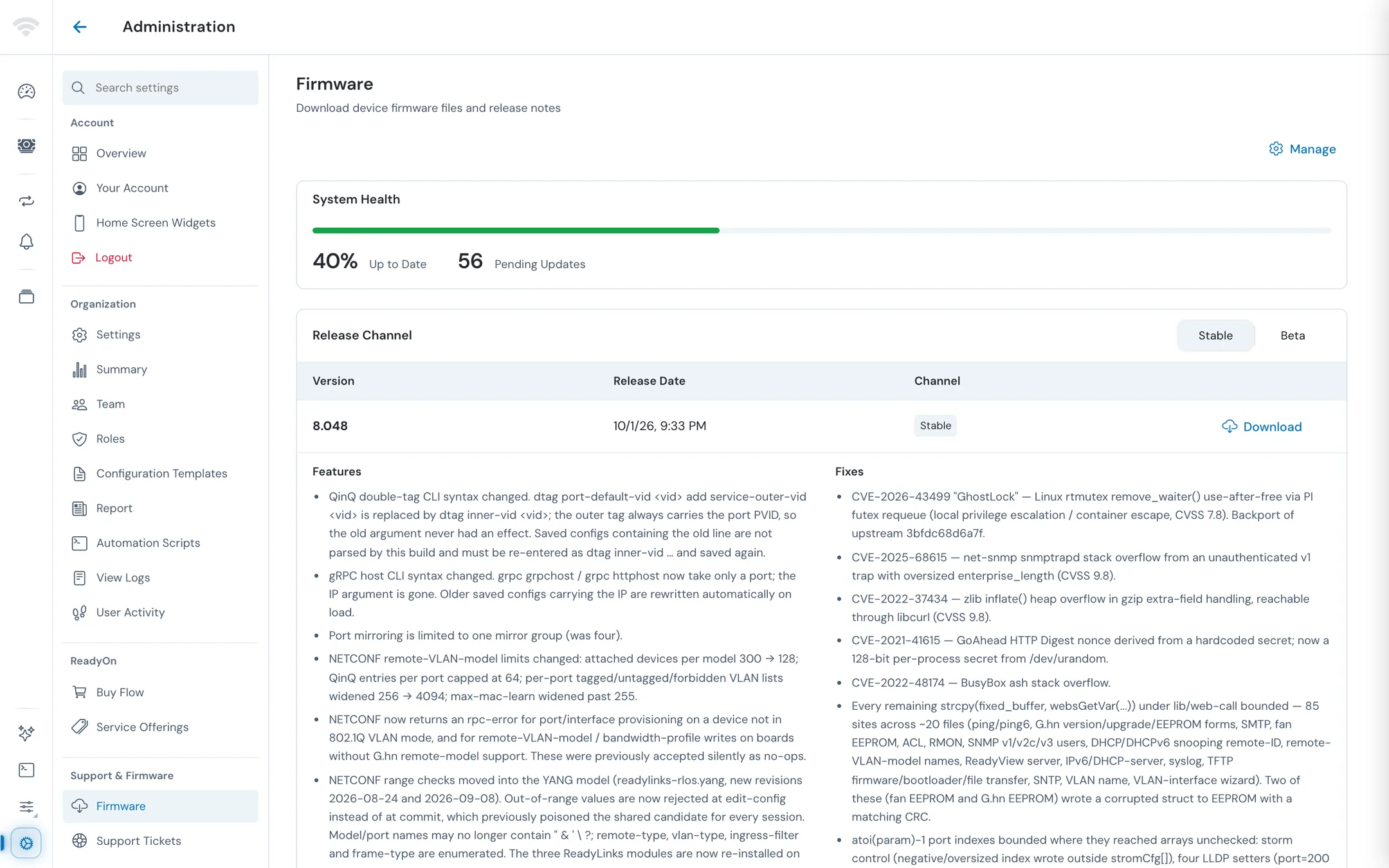
- System Health shows the share of devices that are Up to Date and the number of Pending Updates.
- Release Channel switches the list between Stable and Beta.
- Each release shows its Version, Release Date, and Channel. A U-Boot tag marks a release that also updates the bootloader.
- Open a release to read its Features and Fixes. Click Load Older Versions to see earlier releases.
To download a release:
- Click Download.
- Read the EULA and click I ACCEPT.
- Choose the Firmware image or, when the release has one, the U-Boot package.
You only need these files to upgrade a switch from its own web interface or CLI, or when ReadyLinks support asks. Upgrades started from ReadyView fetch the files for you, including the bootloader step.
#Related guides
Last updated November 10, 2026