Switch, access point, and client details
The side panel that opens when you click a switch, access point, ReadyLink client, or IoT device, and what each of its tabs shows and changes.
Clicking a device anywhere in a site (a device list, the topology graph, a rack, a floor plan, or a port's connected device in Ports Manager) opens its panel on the right. The panel is where you check one device's health, read its history, and change its settings. Which tabs you see depends on the kind of device.
#The panel toolbar
The tabs run across the top. The icons at the right of a switch's toolbar are:
| Icon | What it does |
|---|---|
| Open Web GUI | Opens the switch's own web interface through a tunnel. Shown only if your role allows it. Not available for a switch ReadyView reaches only through CWMP with no in-band IP address. |
| Download diagnostics | Downloads a diagnostic PDF for the device. When the switch's terminal is available, the file also includes command output from the switch, so it can take a minute or two. |
| Take a Tour | Walks you through the panel. |
Close the panel with the X in the top right corner.
#Switch: Overview
Overview is the switch's health page.
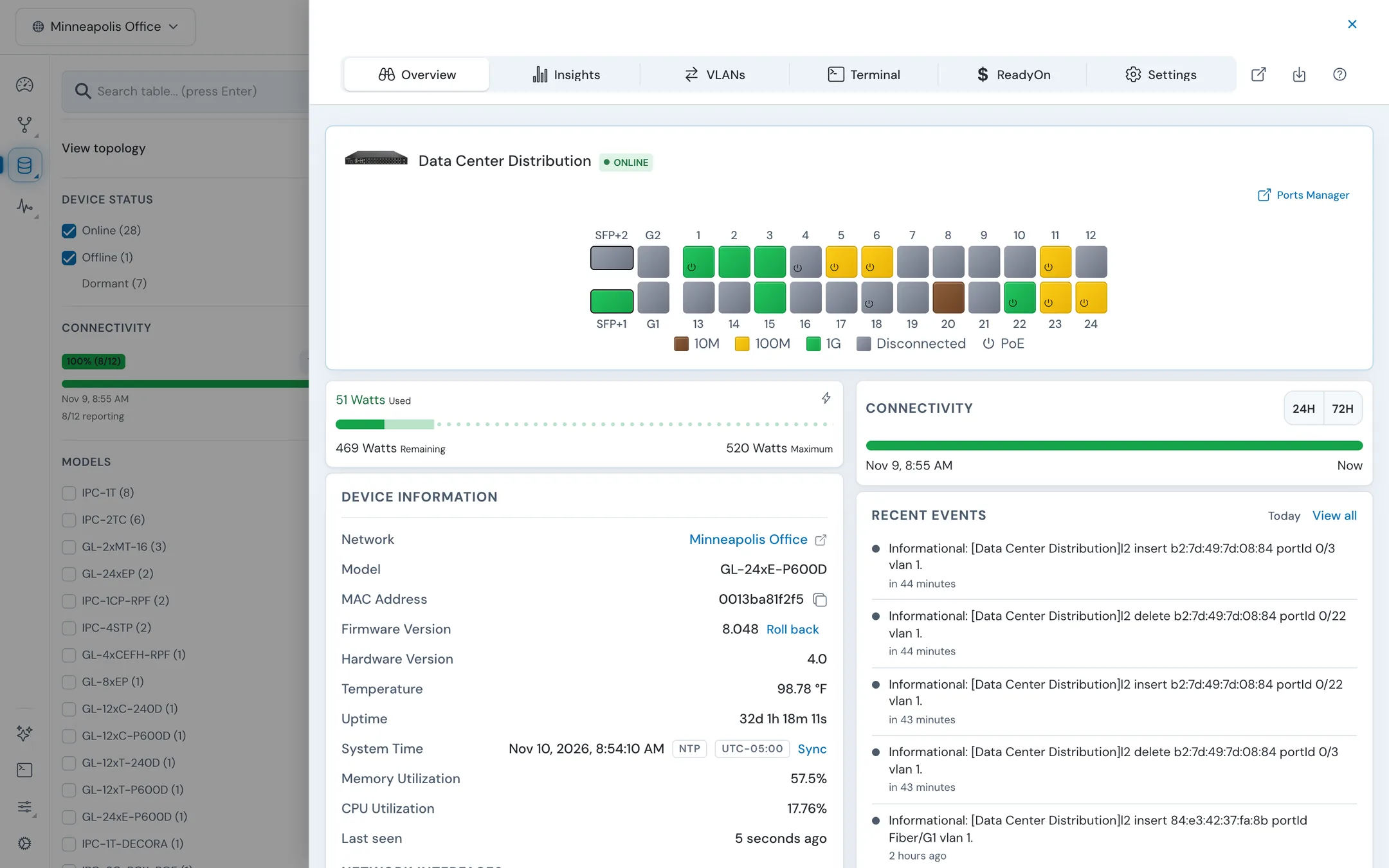
- Port diagram. Every port, coloured by link speed and state, with a legend. Click ports to select them, then click Configure to open their settings. Ports Manager opens the same switch in Ports Manager. Light all port LEDs lights the port LEDs so you can find the switch in a rack: Always On, Auto-Off, or Turn Off.
- Port warnings. The diagram flags ports with a detected loop, a flapping link, and DHCP snooping with no trusted port. It also gives hints for a selected ReadyLink port with no link, SFP optics out of range, and LACP mismatches.
- PoE. Watts Used, Remaining, and Maximum for the switch's PoE budget.
- Device Information. See Device information.
- Connectivity. A bar of uptime over 24H or 72H.
- Recent Events. Today's events for the switch, including admin changes and syslog. View all opens the full list.
- Connected Devices. What's connected to the switch, with All, IPv4, WAN, LAN, Neighbors, and ReadyLinks filters and a search box. The table shows Device, Port, VLAN, and Status. See All shows the full list.
- Show More adds Interfaces (the switch's IP interfaces, with Add Interface), DHCP leases, DHCP snooping entries, and clients.
When the switch is unreachable, a warning at the top says so and shows Device offline since:.
#Device information
| Field | Shows |
|---|---|
| Network, Model, MAC Address | Where the switch is and what it is |
| Firmware Version | The running firmware, with Upgrade when a newer build is available and Roll back to reinstall an earlier build. See Firmware. |
| Hardware Version, Temperature, Uptime | Hardware details |
| System Time | The switch clock, whether NTP is on, its time zone, and how far it's off ("Off by…"). See Sync the switch clock. |
| Memory Utilization, CPU Utilization | Current load |
| Last seen | When the switch last reported |
| Network Interfaces | The switch's VLAN and management IP addresses |
#Sync the switch clock
Click Sync next to System Time.
- With NTP off, this sets the switch clock to your computer's time.
- With NTP on, this sets the switch's time zone to match your computer. NTP stays on and keeps the time.
#Switch: Insights
Insights has a section list on the left. Click a section to show it.
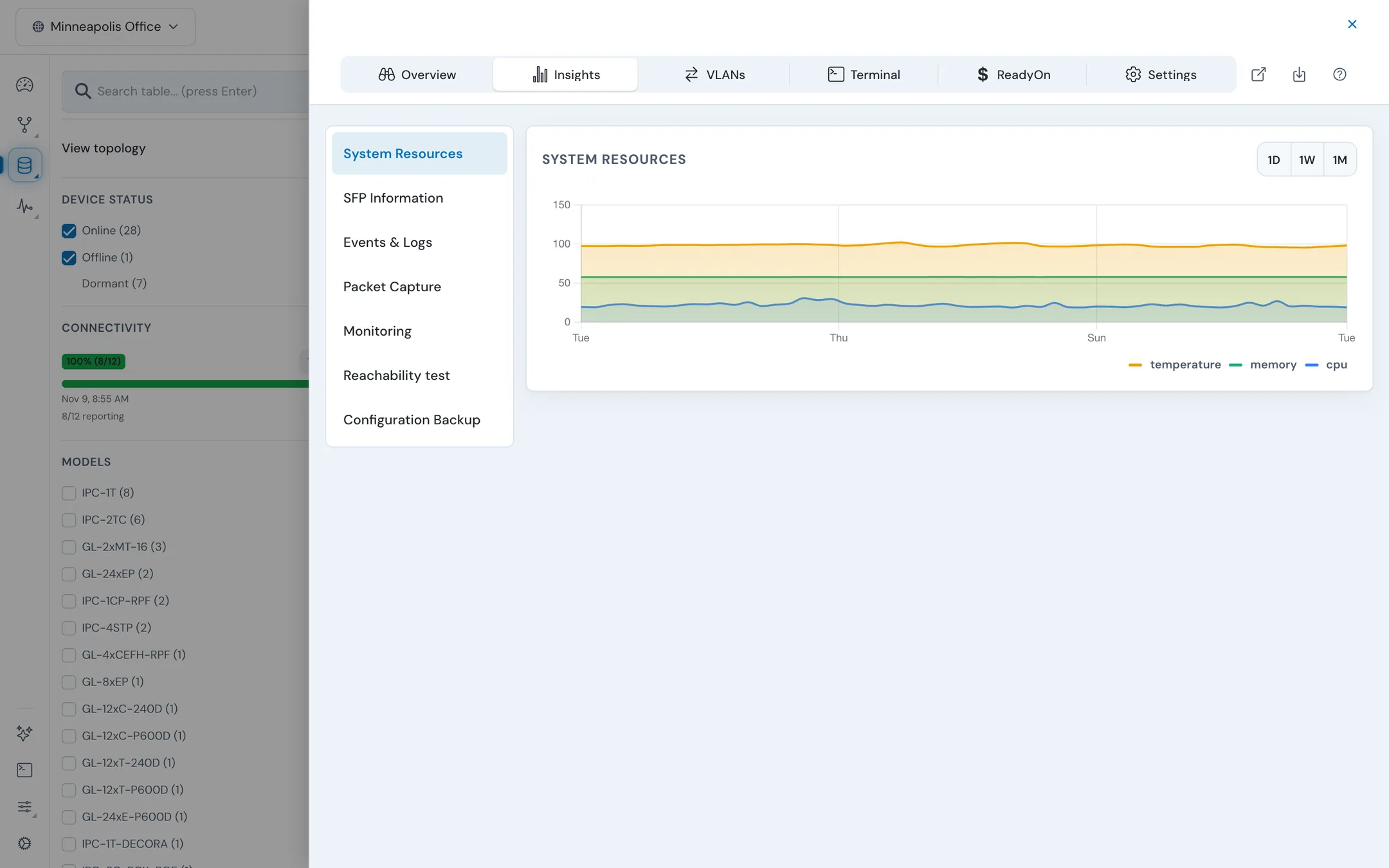
| Section | What it shows or does |
|---|---|
| System Resources | Temperature, memory, and CPU over 1D, 1W, or 1M. With a port selected on the Overview, it shows that port's statistics instead. |
| SFP Information | The SFP modules, with a history of transmit power, receive power, and temperature. |
| Events & Logs | The switch's events and logs. |
| Packet Capture | Captures traffic on the switch, if the model supports it. Duration 10–3600 seconds, file size 1–100 MB. |
| Monitoring | Open Monitoring watches every port on this switch for traffic and data errors. See Monitoring. |
| Reachability test | Ping an IPv4 or IPv6 address (1–100 packets, 4 by default; payload 56 bytes by default) or Traceroute to an IP address or domain. Click Run test; Stop ends it and Copy output copies the result. Needs a switch that supports it and CLI access in your role. |
| Configuration Backup | Download running config downloads the switch's current running configuration as a plain-text file. |
#Switch: VLANs
VLANs shows VLAN membership on port diagrams. It's read-only.
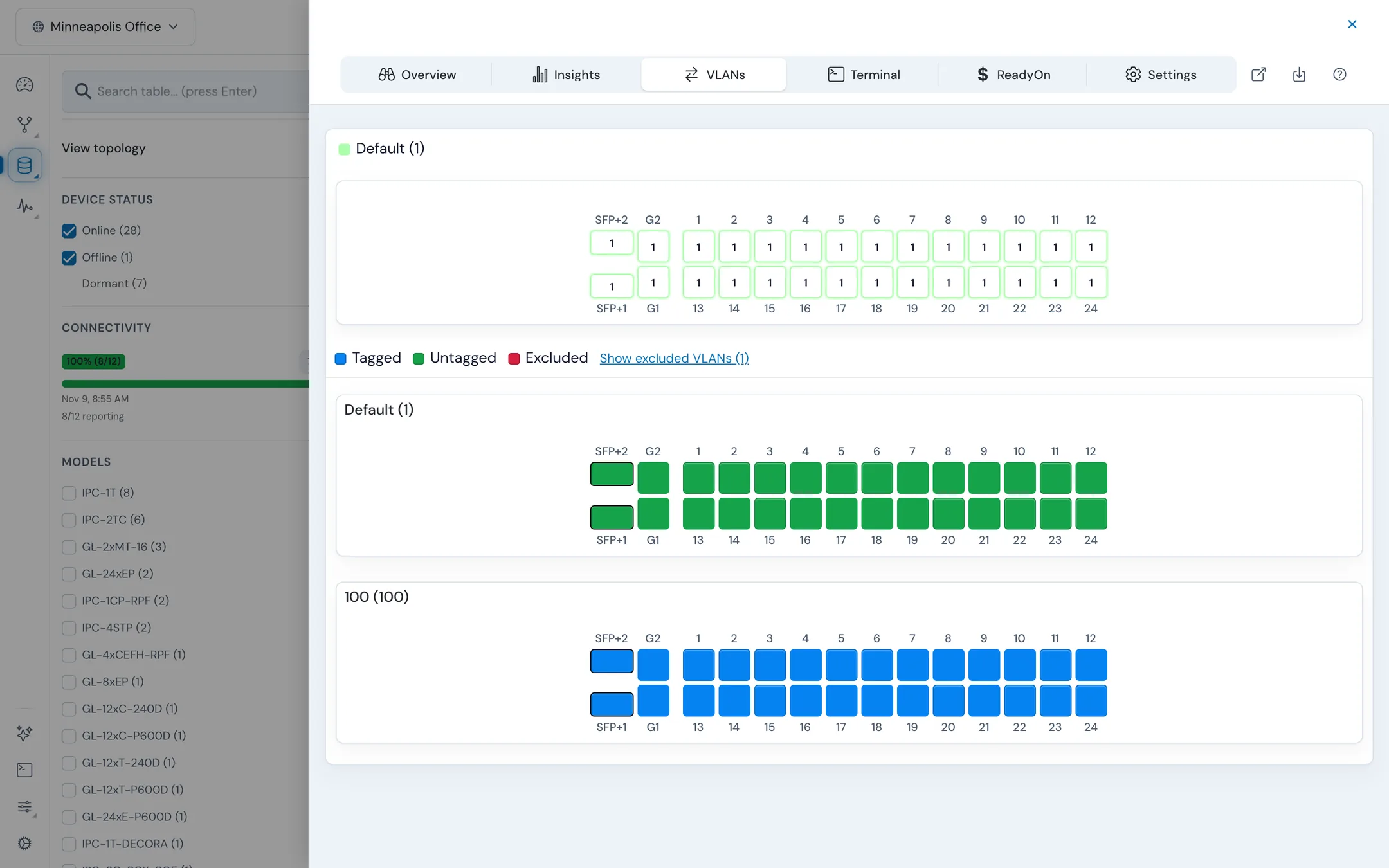
- The first diagram colours each port by its native VLAN (PVID). The legend shows each VLAN as
name (PVID). - Below it, one diagram per VLAN marks each port as Tagged, Untagged, or Excluded.
- VLANs that no port carries are hidden. Click Show excluded VLANs to see them.
To change VLAN membership, configure the ports. See Configure ports.
#Switch: Terminal
Terminal opens a live command-line session on the switch inside the panel. You can also open it in its own window or browser tab, Clear the screen, and export the text.
The terminal needs:
- CLI access in your role. Without it the tab says "Your role does not include switch CLI access."
- SSH on the switch. If SSH is off, turn it on in the switch's Services settings.
- An online switch with a reachable address.
#Switch: ReadyOn
ReadyOn appears when the site has ReadyOn turned on.
- Port Assignments lists the switch's ports. Click a port row to assign a subscriber to it. Tick a port's checkbox to scope the subscriptions and addresses below to that port.
- The subscribers and serviceable addresses cards list who and what is served from this switch.
#Switch: Settings
Settings has a section list grouped by area. Sections appear only when the switch model supports them.
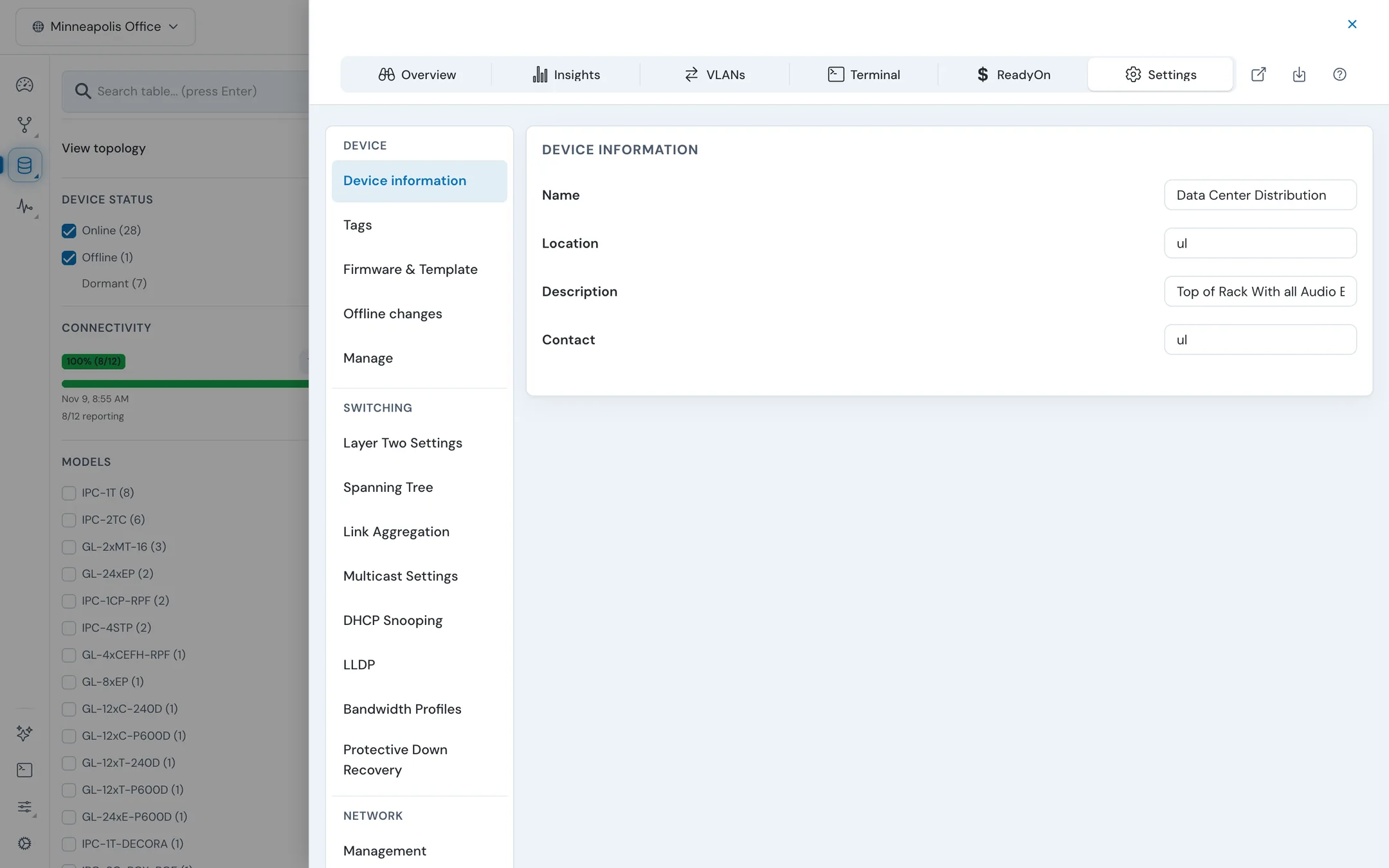
| Group | Sections |
|---|---|
| Device | Device information (Name, Location, Description, Contact), Tags, Firmware & Template (firmware version with Roll back, and the configuration template), offline changes on supported switches, and Manage |
| Switching | Layer Two Settings, Spanning Tree, Link Aggregation, Multicast Settings, DHCP Snooping, LLDP, VectorBoost, Bandwidth Profiles, Protective Down Recovery |
| Network | Management, DNS, Static IPv4 Route Configuration, Static IPv6 Route Configuration, DHCP Server |
| Security | DOS Attack Protection, TACACS+, Login options, Account & Password Policy, Service timeout |
| System | SNTP, Services, Syslog, SNMP Communities, MQTT |
Manage has Reboot, Factory Reset, Move to Site, Remove, and Pin to Quick Actions. Each appears only if your role allows it.
To save, make your changes and click Apply Changes in the bar at the bottom of the panel, or Cancel to discard them. For what each setting does on the switch, see Switch settings.
When you select ports on the Overview and click Configure, this tab opens on those ports' settings instead. See Configure ports.
#Access point panel
An access point's panel has Overview, Logs, and Settings tabs, plus Download diagnostics and Take a Tour.
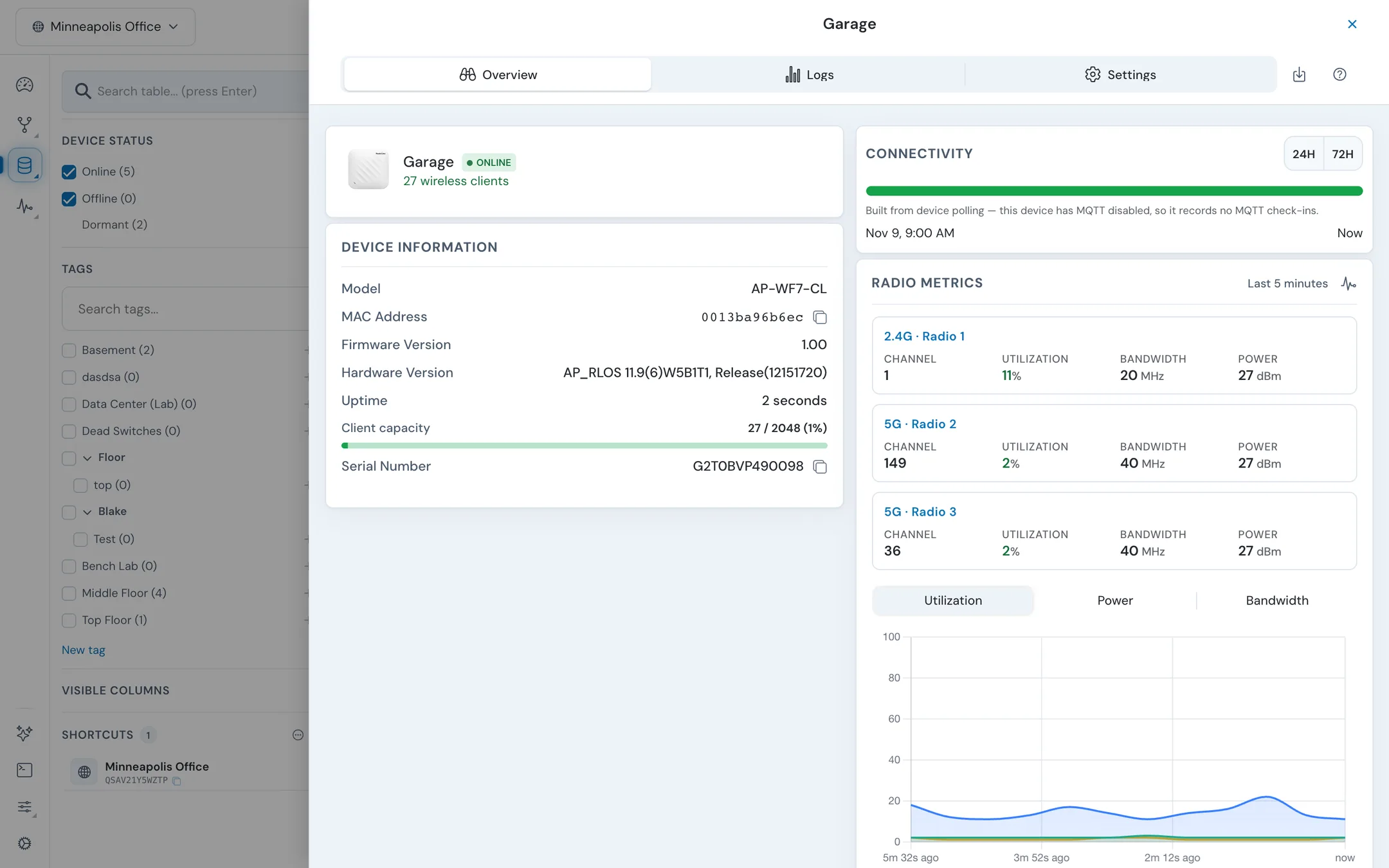
Overview shows:
- Device Information: Model, MAC Address, Firmware Version, Hardware Version, Uptime, IP Address, Client capacity, and Serial Number.
- Connectivity over 24H or 72H. For an access point with MQTT turned off, the bar is built from polling instead.
- Radio Metrics for the last 5 minutes, one card per radio: Channel, Utilization, Bandwidth, and Power. Switch the chart between Utilization, Power, and Bandwidth.
- Wireless Networks, grouped by band: each SSID with its BSSID, Clients, Channel, Width, and TX power.
- Connected Devices: each wireless client with its SSID, Signal, and Status.
Logs is a table of the access point's system log. Settings has Device information, Tags, and Manage (Reboot, Reset, Move to Site, Remove). Click Apply Changes to save.
To manage SSIDs for the whole site, see Site settings.
#ReadyLink client panel
A ReadyLink client's panel has Overview, Insights, VLANs, and Settings tabs.
- Overview: the client's port diagram (with Ports Manager and Configure), device information, connectivity, PoE and line power, and connected devices.
- Insights: events, usage (Live, 1D, 1W, 1M), PHY rate, and Monitoring, which watches the client's ports for traffic and data errors.
- VLANs: the client's remote VLAN model, which is a VLAN policy defined on the headend switch, and port diagrams of its VLANs.
- Settings: Identity, Device, Tags, Remote VLAN Model, Bandwidth Profile, Custom Data, Management, and MQTT.
See ReadyLink clients for the client hardware.
#IoT device panel
Phones, cameras, and other devices from the IoT Devices list open an IoT Device panel with Overview and Settings tabs.
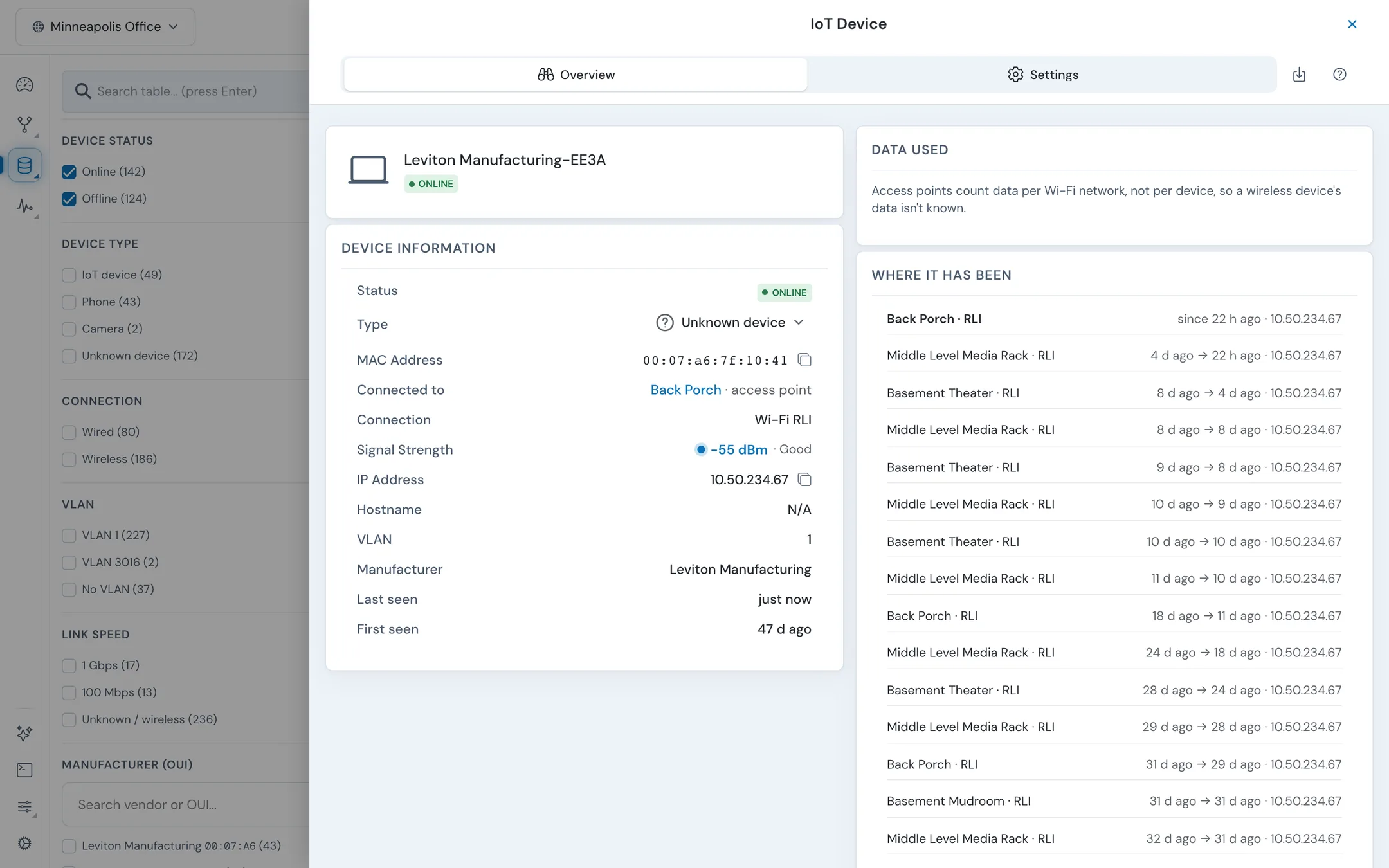
Device Information shows the device's Status, Type, MAC Address, IP Address, Hostname, VLAN, Manufacturer, Last seen, First seen, and Tags, and where it's attached:
- Connected to names the switch, access point, or ReadyLink client the device is plugged into. A ReadyLink client is labelled "G.hn endpoint", meaning the client at the far end of a ReadyLink connection.
- Connection names the switch port (for example
Ghn5) or the Wi-Fi network. Wireless devices also show Signal Strength.
Data used shows traffic Received and Sent over the Last 24 hours or Last 7 days. It's counted on the switch port the device is plugged into, so devices sharing a port share the count. Access points count data per Wi-Fi network, not per device, so a wireless device's data isn't known. A chart of the port's throughput, usage, packets, errors, and link state over 1D, 1W, or 1M sits underneath.
Where it has been lists every place the device has attached, with the times and IP address for each.
#Change a device's type
- Next to Type, click Change device type.
- Choose Automatic, or Set manually and pick a type.
- Apply it to Just this device, to all devices from that vendor on this network, or to all devices from that vendor in every network of the organization.
A vendor rule also types that maker's new devices. Remove it under the Device Type filter on the IoT Devices list.
#Rename or remove an IoT device
On Settings, change the name under Identity, add Tags, and click Apply Changes. Remove device removes it from the site's IoT list. A device that's still connected shows up again the next time it's seen.
#Related guides
Last updated November 10, 2026