ReadyView guides
Sign in to ReadyView, learn the layout, and find the guide for the task you need to do.
ReadyView is ReadyLinks' cloud dashboard for the equipment at your sites: switches, ReadyLink clients, access points, smart plugs, IoT devices, and ReadyWall firewalls. You use it in a web browser to watch each site's health, claim and configure devices, and follow up on alerts. These guides describe ReadyView in a desktop browser.
#Sign in
- Go to https://ui.readylinks.io.
- Under Login, enter your email address in Username.
- Click Sign In. ReadyView checks how your account signs in:
- Password: an Authentication Required dialog asks for your password. Enter it and click Sign In.
- Single sign-on: ReadyView sends you to your organization's identity provider.
- Google, Microsoft, or Apple: ReadyView tells you which provider your account uses. Click that provider's button below the form instead.
The sign-in page has other ways in:
| Option | Use it when |
|---|---|
| Forgot password? | You've forgotten your ReadyView password. |
| Sign in with a passkey | You have a passkey for ReadyView. The button appears only when your browser supports passkeys. |
| Sign in with Google, Sign in with Microsoft, Sign in with Apple | Your ReadyView account uses that provider. |
| Sign in with SSO | Your organization uses single sign-on. ReadyView asks for your organization ID, unless you opened your organization's own SSO link. See Single sign-on. |
If you don't have an account yet, the links under the form offer two choices. Click Create one to make a new ReadyView account. If you're joining a team that already uses ReadyView, click Request access instead.
#Find your way around
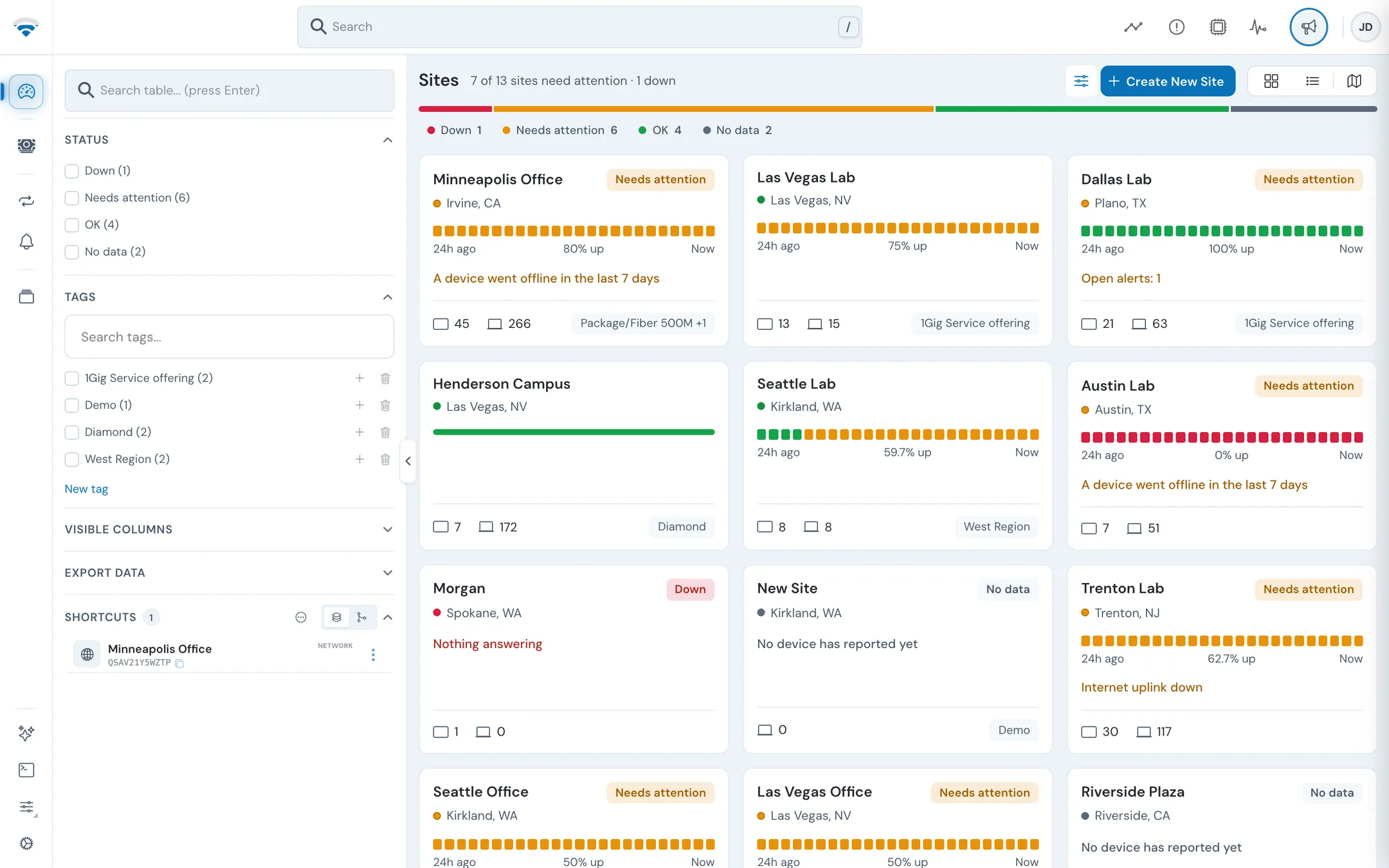
ReadyView has two levels: the organization, which holds all your sites, and the site, which holds the devices at one location. After you sign in, you land on the organization's Dashboard, which lists every site.
#The organization rail
The icon rail down the left side of the screen holds the organization's pages. Hover over an icon to see its name.
| Rail item | What it opens |
|---|---|
| Dashboard | The list of sites in the organization, with each site's health. See Sites. |
| ReadyOn Revenue | ReadyOn revenue figures. It appears only when your organization uses ReadyOn. See ReadyOn. |
| Routines | The Routines view of the AI Assistant panel. See AI Assistant and automation. |
| Notifications | Your notifications. See Events and alerts. |
| Change Organization | A list of the organizations your account belongs to, so you can switch between them. See Switch organizations. |
| AI Assistant (bottom) | The AI Assistant panel. |
| Terminal (bottom) | A terminal window, where you can open a switch's command line or the automation terminal. |
| Preferences (bottom) | A menu with Take a Tour, Documentation, Language, and the light or dark theme switch. |
| Administration (bottom, cog) | Your account and the organization's settings: team, roles, configuration templates, firmware, support, and more. See Team and organization. |
#The top bar
| Control | What it does |
|---|---|
| Search | Searches your organization. Press / from anywhere to jump to it. |
| Analytics | Organization-wide counts: devices and ports, firmware and configuration status, and what was added over a time range you choose. |
| Operational Incident Center | The organization's logs and incidents. See Events and alerts. |
| Operations Center (pulse icon) | Firmware updates and bulk actions, while they run and after they finish. |
| Profile (your avatar) | Account Management, your personal settings and preferences. |
#Inside a site
Open a site by clicking its card on the Dashboard. The screen changes to the site's own layout:
- Top left: the site's name. Click it to search for and switch to another site, or click Go to Global Dashboard to return to the organization.
- Top right: Search (
/), Add Device, and your profile. - Left rail: the site's Dashboard first, then three groups. Click a group's icon to open a menu of its pages.
| Group | Pages | Guide |
|---|---|---|
| Network | Topology, Infrastructure, Floor Plans, Ports Manager | Topology, Floor plans, Ports Manager |
| Devices | Firewalls, Switches, Wireless, Power Management, IoT Devices | Devices, Firewalls |
| Operations | Offline Field Pack, Events, Monitoring, Schedule, ReadyOn | Troubleshooting, Events and alerts, Monitoring, Firmware |
The Devices group hides a device page when the site has none of that kind, except Switches, which always shows. ReadyOn appears only on ReadyOn sites.
At the bottom of the site rail are AI Assistant, Terminal, Preferences, and Settings (cog). Settings opens the site's own settings: networks, Wi-Fi, security, who can see the site, and more. See Site settings.
#Guides in this section
Sites
The organization Dashboard: site health, filters, tags, shortcuts, and creating a site.
Site dashboard
A site's inventory, internet activity, firewall traffic, and network analytics.
Adding devices
Claim devices by MAC address, QR code, or a CSV file.
Device lists
The Switches, Wireless, Power Management, and IoT Devices lists.
Switch, access point, and client details
A device's panel: overview, insights, VLANs, and settings.
Ports Manager
See and configure ports across a site's switches.
Topology and racks
The site's topology graph and its infrastructure racks.
Floor plans
Upload floor plans and place devices on them.
Events, logs, and alerts
Site events, the Operational Incident Center, and notifications.
Site settings
A site's networks, Wi-Fi, security, permissions, and general details.
Configuration templates
Build switch configurations once and apply them to many devices.
Firmware and maintenance
Firmware files, updates, and the site schedule.
Monitoring
Trace IPTV channels across switches and watch a device's port traffic and errors.
Team and organization
Your team, roles, organization settings, and reports.
AI Assistant and automation
The AI Assistant, routines, and automation scripts.
Troubleshooting
The Offline Field Pack and fixes for common problems.
#Related guides
Last updated November 10, 2026