AI Assistant and automation
Ask the Network Assistant about your network, schedule routines, run Automation Scripts on your switches, and use the Terminal and Operations Center.
ReadyView has several ways to work on many devices at once or without clicking through each page. The AI Assistant answers questions and makes changes in plain language, routines run assistant tasks on a schedule, Automation Scripts run reviewed ReadyLinks scripts on your switches, and the Terminal opens a switch's command line. Everything here runs as you, within what your role allows.
#Open the AI Assistant
Click AI Assistant near the bottom of the left rail. The Network Assistant opens in a panel beside the page you're on, so you can keep looking at a site while you ask about it. From the panel you can Open full page, Open in new tab, or Close it. On the full page, Exit full page puts it back in the panel.
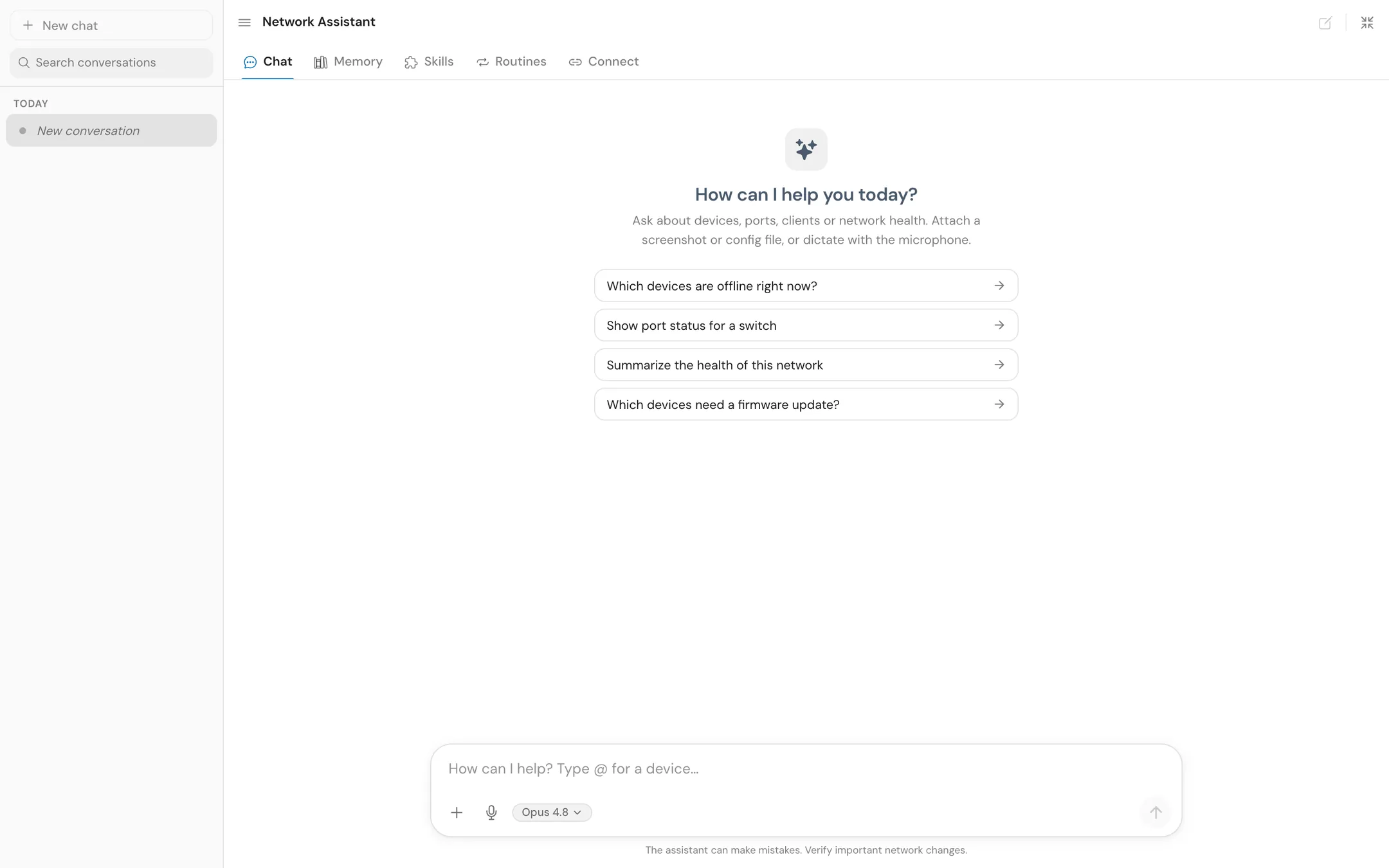
The assistant has five tabs: Chat, Memory, Skills, Routines and Connect. Your past conversations are listed on the left, grouped by date. Click New chat to start another, search them with Search conversations, or rename and delete them. Toggle conversation history hides or shows the list.
#Chat with the assistant
- Type a question in the box at the bottom, or pick one of the suggestions, such as "Which devices are offline right now?" or "Which devices need a firmware update?".
- To ask about a specific device, type
@and pick it from the list. This works while a site is open. - To follow one of your organization's skills, type
/and pick it. - To add context, attach a screenshot or a config file (up to 10 MB each), or dictate with the microphone.
- Send the message. Click Stop generating if you want to stop the answer early.
Ask about devices, ports, clients or network health. The assistant can also make changes your role allows. Before a destructive change, it shows a Destructive change card with the target and the exact change. Nothing changes until you click Confirm; Cancel drops it. The card shows when it expires.
#Memory
Memory holds notes the assistant has saved about your organization. It reads them at the start of every conversation.
- Switch between Organization notes and notes for This network.
- Click Add note to write one yourself, or tell the assistant "remember this…" in a chat.
- The assistant also saves notes on its own after reviewing finished conversations.
- Pin a note to lock it against edits by the assistant.
#Skills
Skills are reusable playbooks the assistant follows when you type / and a skill's command. They're shared by your whole organization, and the assistant can pick one on its own when a task matches.
- Click New skill and fill in Name, Command, Description and Instructions.
- Built-in skills can be customized or hidden, and Restore built-in puts the original back.
Editing skills is limited to organization admins.
#Routines
A routine is an assistant task that runs on its own on a schedule, such as a daily health check, a weekly compliance sweep, or a maintenance job. Open Routines from the left rail (it opens the assistant on the Routines tab over the page you're on) or from the assistant's tabs.
#Create a routine
- Click New routine.
- Under Describe it in words, write what you want, for example "Every weekday at 7am, check the Main Office uplinks and report any errors", and click Preview. ReadyView fills in the form from your sentence so you can check it. Schedule words are read in English only; if it can't find a schedule, the form starts on the default.
- Check or fill in the form. The fields are described below.
- Check the schedule preview, which lists the next runs, then save.
| Field | What it does |
|---|---|
| Name | The routine's name on its card |
| Task for the AI | Written like a message to the assistant. It runs unattended, and the result is saved on the routine |
| Site | One site, or all sites (organization-wide). Only sites you can open are listed |
| Pinned scripts (optional) | Reviewed Automation Scripts that run as written, in order, before the task |
| Changes it may make | What the routine may change. See the next table |
| Runs | The schedule, with a time and Timezone |
Changes it may make has three settings:
| Setting | Behaviour |
|---|---|
| Read only | Looks and reports. Any change it tries is refused and recorded |
| Ask first | Each change waits, with its exact preview, for a member to approve it within 24 hours |
| Within limits | Makes changes on its own inside the routine's site. Needs a single site. You can limit which tools it uses and the most changes per run |
Destructive actions, such as a factory reset, never run from a routine in any mode.
Runs offers every day, weekdays, chosen days, every month, every few minutes or hours, once or at set times, a custom cron expression, or on demand only.
#Manage routines
Each routine's card shows its state (scheduled, running or paused), its schedule and next run, its site, who it runs as, what it may change, its task, and the last run's report. On a card you can:
- Run now to run it straight away;
- edit it (the creator only);
- Duplicate it, to make your own copy;
- Pause it, and Resume it later;
- delete it. It stops running, and the record of its past runs is kept.
Click Show details for the run history. Each run shows whether it Succeeded, Failed, was Refused or Timed out. A run of an Ask first routine that is waiting on you shows its proposed change with Approve and Deny.
#Connect your own tools
Connect lets you use ReadyLinks from your own AI tools through the ReadyView MCP server.
- Copy the MCP server URL.
- In your tool, add a remote (HTTP) MCP server with that URL.
- Sign in to ReadyView when asked, and approve read-only or read-and-write access.
- Ask your tool about your network.
The tab also has instructions for Claude Code and for ChatGPT's developer mode. Connected apps act as you, within your role, in every organization you belong to. To see or disconnect them, go to Administration > Your Account > Connected apps.
#Automation Scripts
Automation Scripts (Administration > Automation Scripts) runs ReadyLinks' reviewed scripts on your switches, such as adding an SNMPv3 user, sending logs to a syslog server, applying a configuration template, upgrading firmware, or building an Excel report. You need the Run Automation Scripts permission.
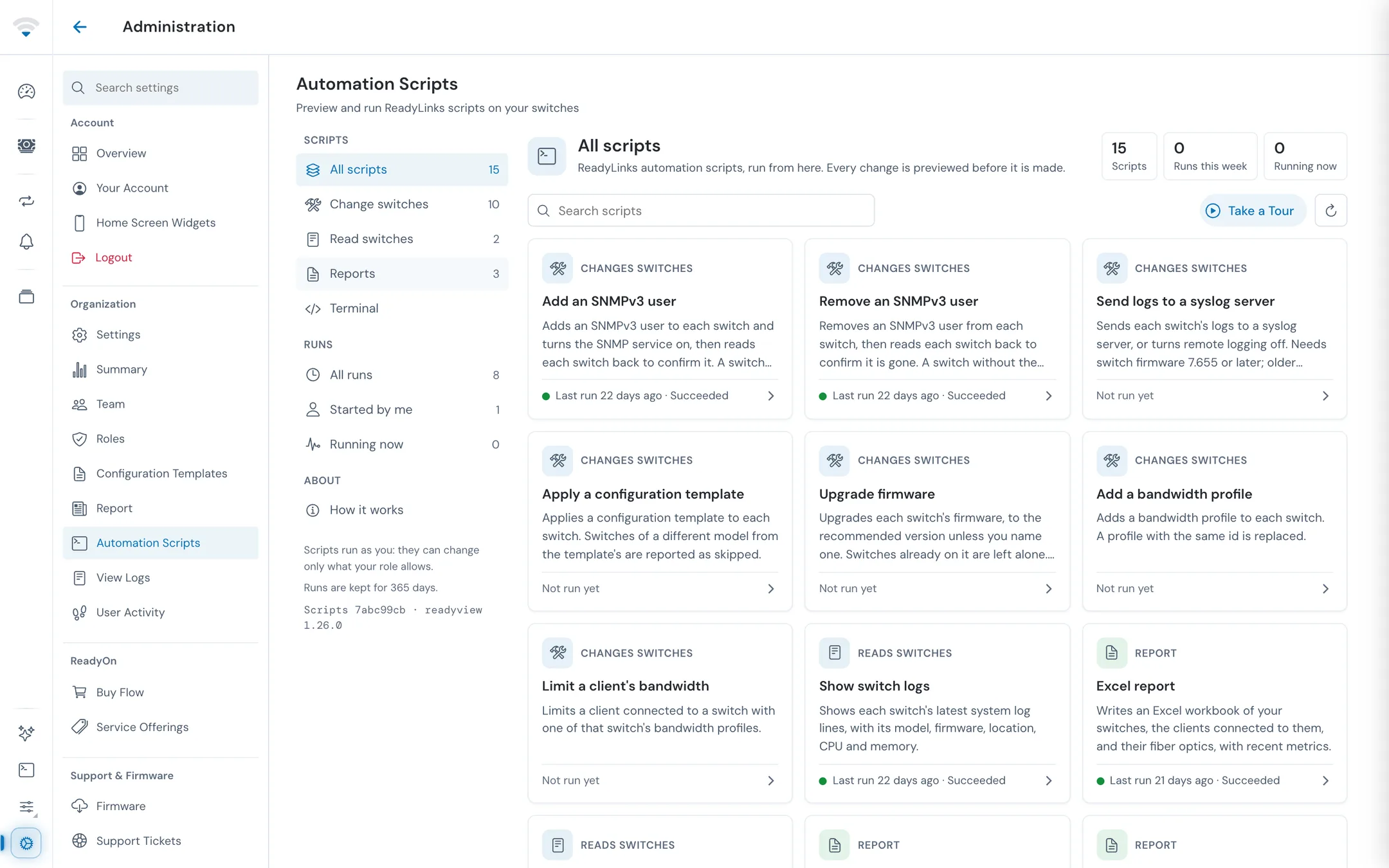
The left menu filters the scripts (Change switches, Read switches, Reports) and the runs (All runs, Started by me, Running now). Each card shows whether the script changes switches, reads switches or builds a report, and when it last ran. How it works explains the steps below.
#Run a script
- Open a script and choose Where it runs: A network, Every network, or Chosen switches. Then fill in its settings.
- Click Preview the change. This is a dry run: it lists the switches the script would change and the ones already set as asked. Nothing changes yet.
- If ReadyView can't undo the change, the script runs on one pilot switch first. These scripts are marked Pilot first.
- Click Run on N switches and confirm. Only previewed switches change.
- Watch each switch's result on the run page. You can leave the page while it runs. Stop ends the run; switches it has already started finish.
- When it finishes, review each switch's result, download the report if there is one, or click Run again.
Scripts run on ReadyLinks' servers, as you, and can change only what your role allows. One script that changes switches runs at a time in your organization; reads and reports can run alongside it. Passwords you enter are sent once with the run and never stored. Runs are kept for 365 days.
#Run scripts as commands
Terminal in the Automation Scripts menu runs the same scripts as commands, as you would in a shell. A change is still previewed first and waits for your yes. A script's page has Open in terminal to start there.
#Terminal
Click Terminal near the bottom of the left rail to open a terminal window over the page. Find a switch by name, MAC address or site to open its command line, or open the Automation tab for the automation terminal. Each opens in a tab of its own.
- Tabs can be renamed, colored, duplicated, cleared, exported as text, or opened in a new browser tab.
- Minimize or maximize the window, or click Return to Page to get back to what you were doing.
- Closing all tabs ends the switch sessions; the automation terminal keeps its history.
You need a role that includes switch CLI access (Access Switch CLI). An offline switch shows "Can't connect". For switch commands, see Switch settings.
#Operations Center
Firmware updates and bulk actions, such as claiming many devices or turning a network's LEDs on or off, keep running in the background while you use other pages. Click Open Operations Center in the top bar to follow them.
| Status | Meaning |
|---|---|
| Running | Still in progress |
| Requests accepted | The devices accepted the firmware update requests. Installation continues on the devices |
| Completed | Finished on every device |
| Needs attention | Finished, but some devices failed or need a look |
| Failed | The operation could not be completed |
| Monitoring stopped | Your previous session ended while it ran, so ReadyView stopped following it. Check the devices before retrying |
Clear finished removes completed items. The history is kept in this browser only, so another browser or computer won't show it.
#Related guides
Last updated November 10, 2026