Troubleshooting
What to check when a device is offline, a site needs attention, a client is missing, or you need to know what changed, plus working on site without internet and getting help from ReadyLinks.
This page covers the problems people run into most often in ReadyView and where to look for each one. For firewall problems, see ReadyWall troubleshooting. For general network problems, see Network troubleshooting.
#A device shows Offline or Dormant
A device is Offline when ReadyLinks stops hearing from it. It becomes Dormant when it has been offline for 7 days or more, or since an unknown time. A site's card on the Dashboard doesn't count dormant devices as offline.
- Open the site and go to the device list, for example Devices > Switches.
- Under Device status, click Offline or Dormant to list only those devices. The Offline Since column shows when each one dropped.
- Find what the device connects to. Topology shows its upstream switch, and the upstream switch's Ports Manager shows that port's link, PoE and VLAN.
- Open Events for the site and look at the time the device went offline. See What changed?.
- If nothing in ReadyView explains it, check the device on site: power, the cable or ReadyLink connection to the upstream port, and the upstream port's PoE.
#A site shows Needs attention
Each site on the Dashboard has a health state, and a short reason when something is wrong. Filter the Dashboard by Down, Needs attention, OK or No data to see the sites in that state.
| State | Meaning |
|---|---|
| OK | Every device at the site is answering and nothing is flagged |
| Needs attention | The site is up, but a device is offline or alarming, a device has an open alert, or the internet uplink is down or slow |
| Down | Nothing at the site is answering |
| No data | No device at the site has reported yet |
The reason on the site card tells you where to start:
| Reason | Where to look |
|---|---|
| "A device went offline in the last 7 days" | The site's device lists, filtered by Offline. See A device shows Offline or Dormant |
| "A device has an open alert", "Open alerts" | The alert, in Events and alerts |
| "A client is offline or alarming" | The site's IoT Devices list. See A client is missing |
| "Internet uplink down", packet loss above 2% or latency above 150 ms on an uplink | The site's firewall. See ReadyWall troubleshooting |
| "Nothing answering" | The site's internet connection and its core switch |
| "No device has reported yet" | Whether the site's devices were claimed and are online. See Adding devices |
#Find what changed
When something worked yesterday and doesn't today, these four places show what happened and who did it.
| Where | What it shows |
|---|---|
| Events (in a site, under Operations) | That site's events, newest first, with the date and time of each |
| View Logs (Administration > View Logs) | The organization's logs as an Incident inbox: repeated events are grouped and ranked so the highest-impact problems come first. Switch to Raw logs for every entry |
| User Activity (Administration > User Activity) | Every change one member made, newest first. See User Activity |
| Time Machine (in a switch's Ports Manager) | The switch's ports as they were at an earlier time |
View Logs loads up to 500 recent logs, so older problems may fall outside it. Filter by Status and Severity, and click Refresh to load newer entries.
#Look back at a switch's ports
- Open the switch's Ports Manager and choose Time Machine.
- The timeline shows the last 24 hours and marks the port events in that time.
- Drag along the timeline, or click an event marker, to see the ports as they were at that moment.
- Click Back to live to return to the current view.
A client that was connected then but isn't now shows as Connected then, gone now. For the rest of Ports Manager, see Ports Manager.
For changes to a ReadyWall firewall, see Change history.
#A client is missing
- Open the site and go to Devices > IoT Devices.
- Under Device status, click Offline. Check the client's Last seen, which is when ReadyLinks last heard from it.
- Narrow the list with Connection (Wired or Wireless), VLAN or Manufacturer (OUI) if you don't know the client's name.
- For a wired client, open the switch's Ports Manager and check the port it should be on: link, PoE and VLAN. Use Time Machine to see whether it was there earlier.
- Check the site's Events for the client's connect and disconnect events.
To search every online switch at once, run the Find a connected device script under Administration > Automation Scripts. It searches the switches' cached MAC address tables, skips standard uplink ports, and reports any switch it couldn't read. See Automation Scripts.
For ReadyLink clients, see ReadyLink clients.
#Work on site without internet: Offline Field Pack
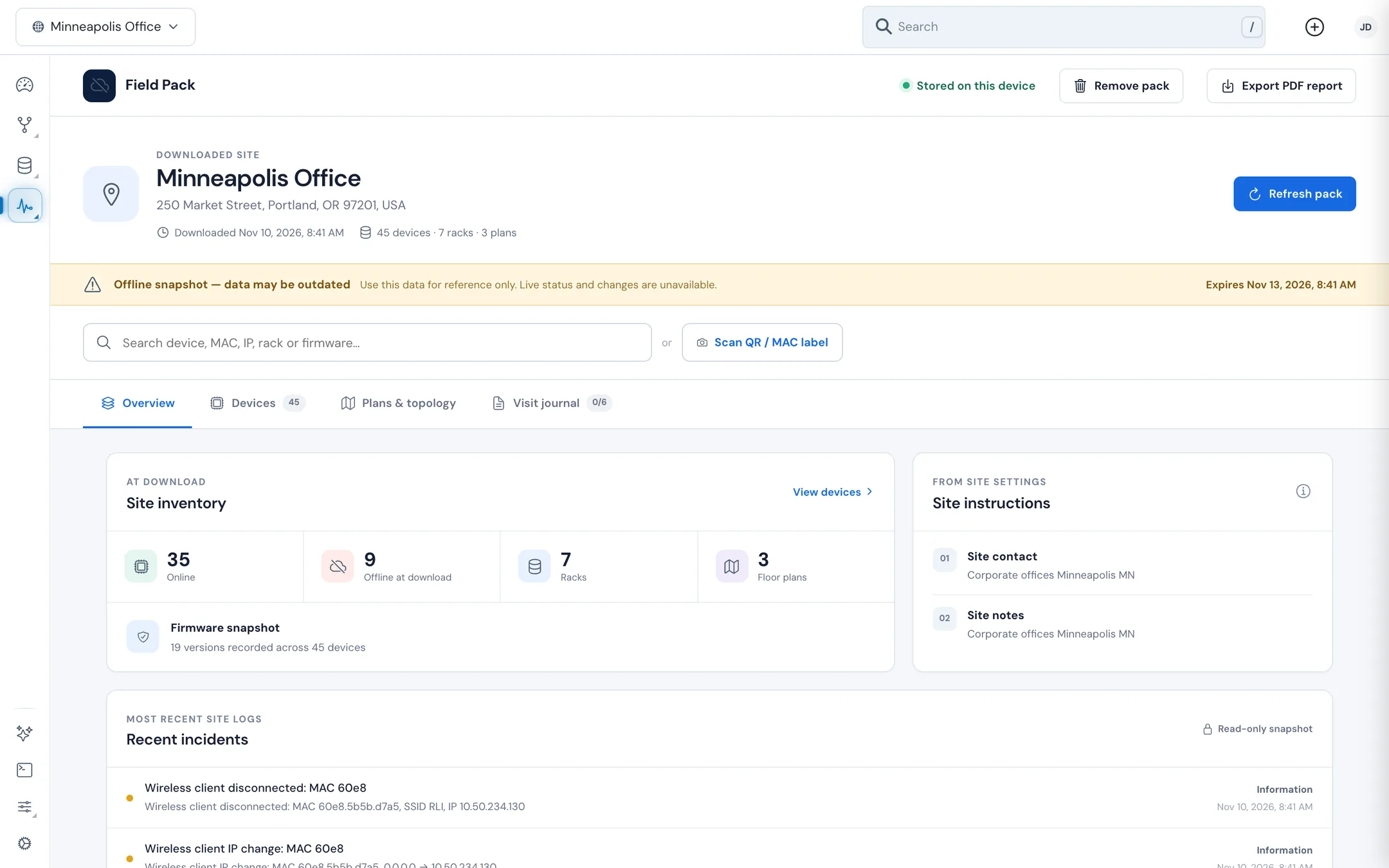
The Offline Field Pack is a read-only copy of one site, stored in your browser on this computer, so you can keep working when the site has weak or no internet, such as in a basement closet, on a rooftop or at a remote property. Download it while you still have a connection.
#Download a pack
- Open the site and go to Operations > Offline Field Pack.
- If this browser has no pack for the site yet, ReadyView downloads one. It copies the site's inventory, rack positions, floor plans, topology and recent events.
- When the header shows Stored on this device, the pack is ready.
The pack expires 72 hours after you download it. Click Refresh pack while you're online to download a fresh copy. If a refresh fails, the pack you already have stays on this device unchanged.
#Use the pack on site
Search by device name, MAC, IP, rack or firmware. Or click Scan QR / MAC label and choose a photo of a device's QR code label to jump to that device; if no QR code is found, type the MAC or label text in the search box.
| Section | What's in it |
|---|---|
| Overview | Device counts at download (online, offline, racks, floor plans), a firmware snapshot, the site instructions from site settings, and the most recent site logs |
| Devices | Every device with its model, MAC, position, firmware, IP and its status at download. Click one for its details |
| Plans & topology | Each floor plan with its rack and device positions, and the site's topology |
| Visit journal | A visit checklist, Technician notes and up to 8 Visit photos. These stay on this device and are saved as you go |
Export PDF report saves a visit report with the snapshot details, the checklist, your notes, recent incidents, the device inventory and your photos. Remove pack deletes the pack and its journal from this device.
Site instructions come from the site's contact and description fields. Fill them in under Site settings before you download, so technicians have them on site.
#Get help from ReadyLinks
Both of these are under Administration > Support & Firmware.
- Support Tickets: click New Request to open a ticket. Your tickets and replies are listed on the same page.
- RMA: to return faulty hardware under warranty, click New Returns Request, pick the devices (or enter one by hand if you've already removed it), choose an Issue Category, describe the problem, then click Submit RMA Request.
A ticket is resolved faster when it says which site and device are affected (the MAC address, such as 00:13:ba:12:34:56), when the problem started, and what you've already checked. Don't include passwords or your API key. For other ways to reach us, see Contact.
#Related guides
Last updated November 10, 2026